How to redeem your code and top up your Apple ID balance
The Apple Gift Card code arrives by email right after payment. Five steps turn it into your Apple ID balance (called “Apple Account” in newer iOS versions), and subscriptions and purchases are paid from that balance.
Redeeming the code
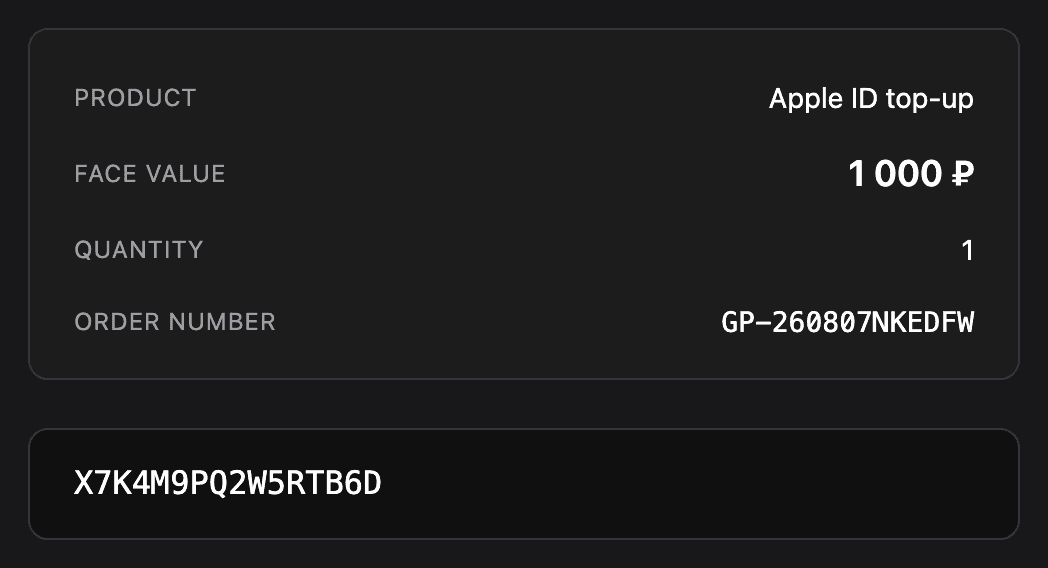
Take the code from the email
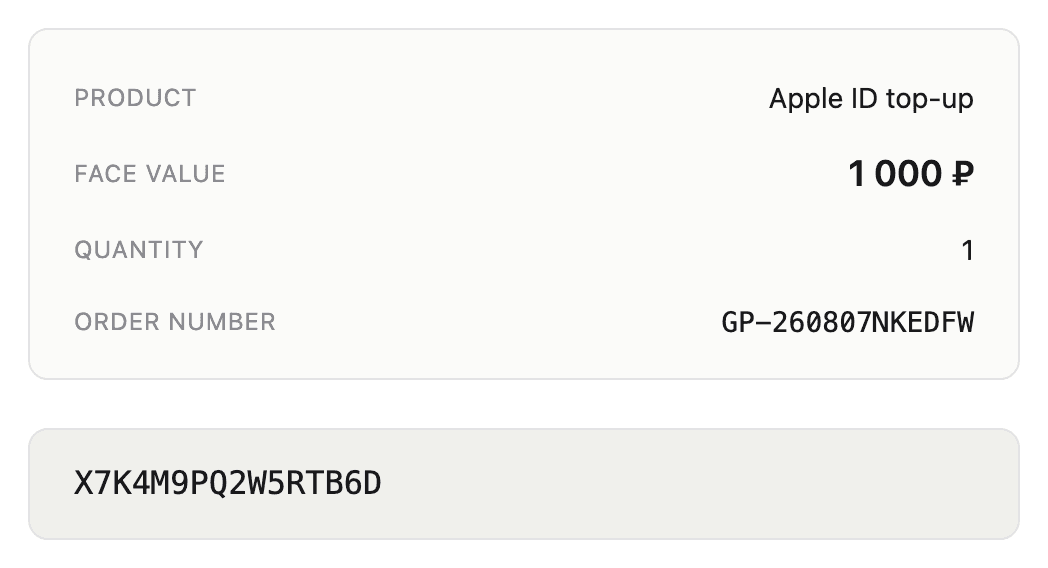
This is your Apple Gift Card code: 16 characters long, starting with an X. Copy it in full — no spaces or dashes needed.
Open the App Store and tap your photo
The sign-in button or your photo sits at the top of the screen. Sign in to your Apple ID first — without it the menu won't have the item you need.
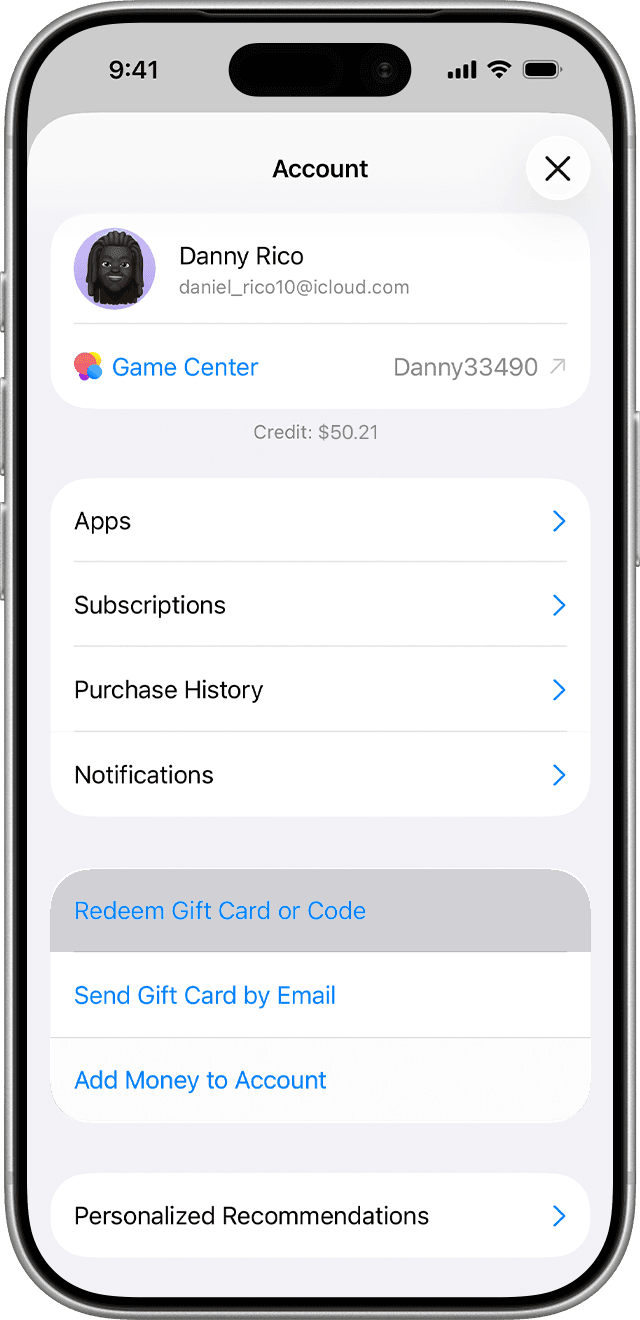
Tap “Redeem Gift Card or Code”
It sits below the Apps — Subscriptions — Purchase History list.
Tap “Enter Code Manually”
The App Store offers “Use Camera” first — you don't need it for a code from an email. Paste the code, tap “Redeem” and confirm with Face ID or your device passcode.
Check the balance
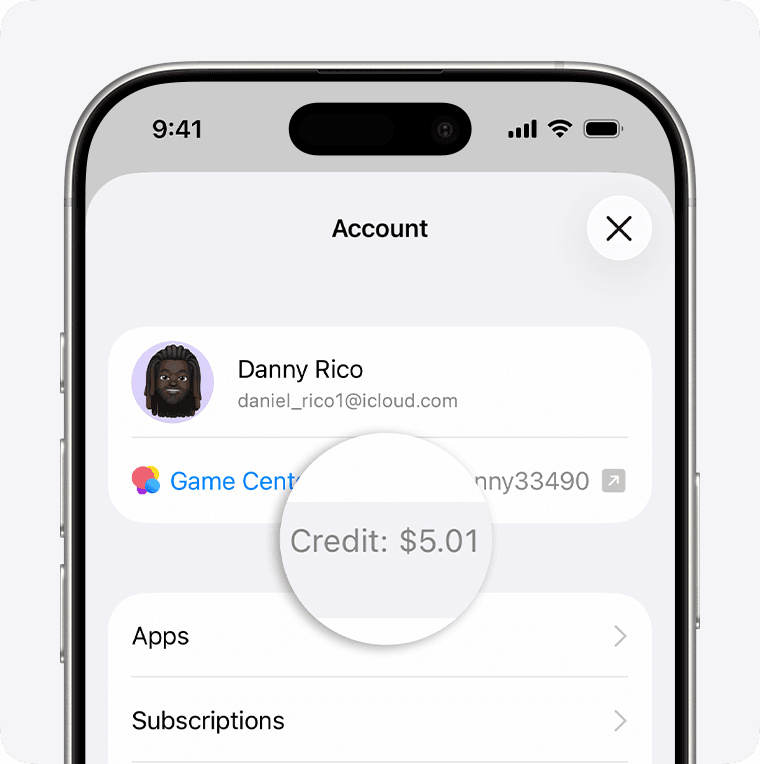
The amount shows up on the same profile screen, in the “Credit” line under your name.
The menu looks different in iOS 26.4
The actions are the same: tap “Redeem Code” in your profile, then “Enter Code Manually”.
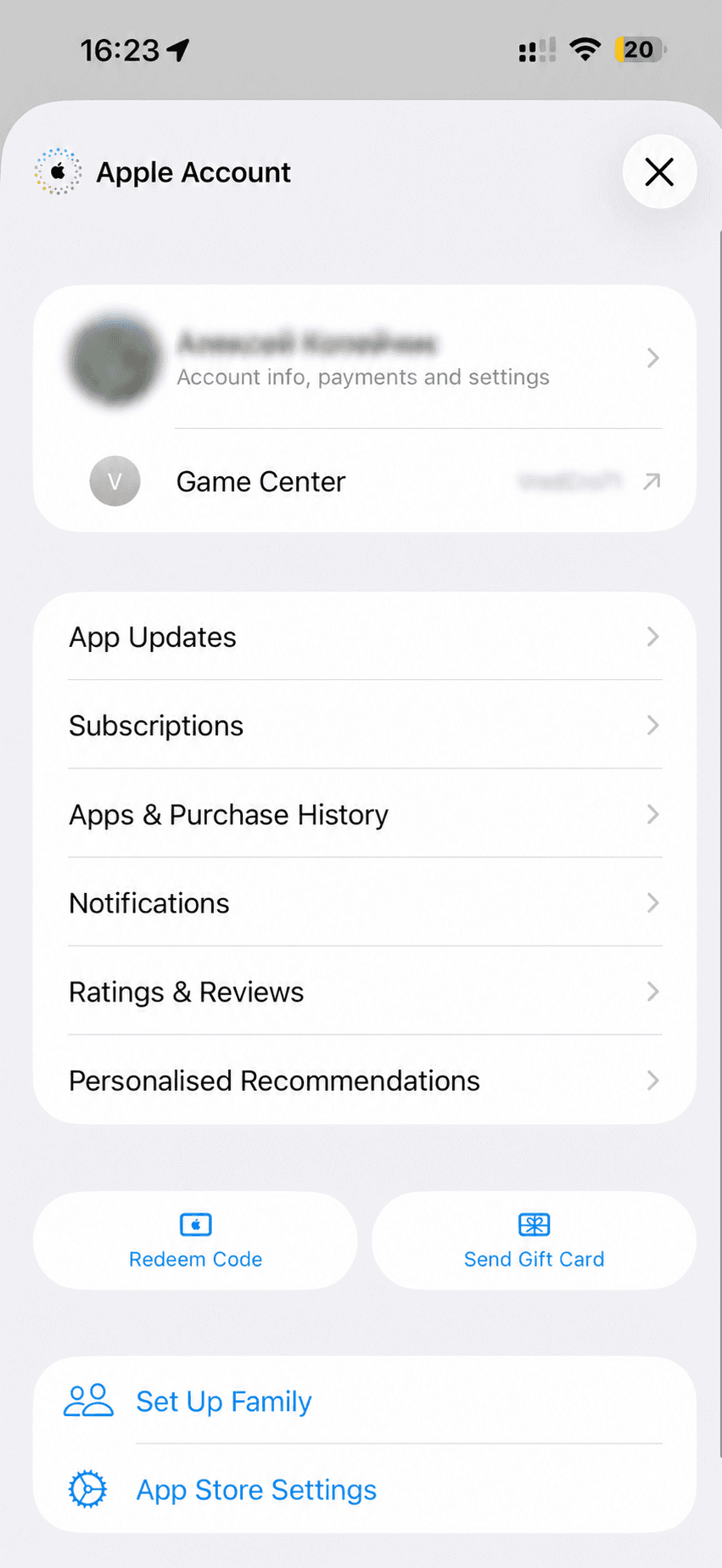
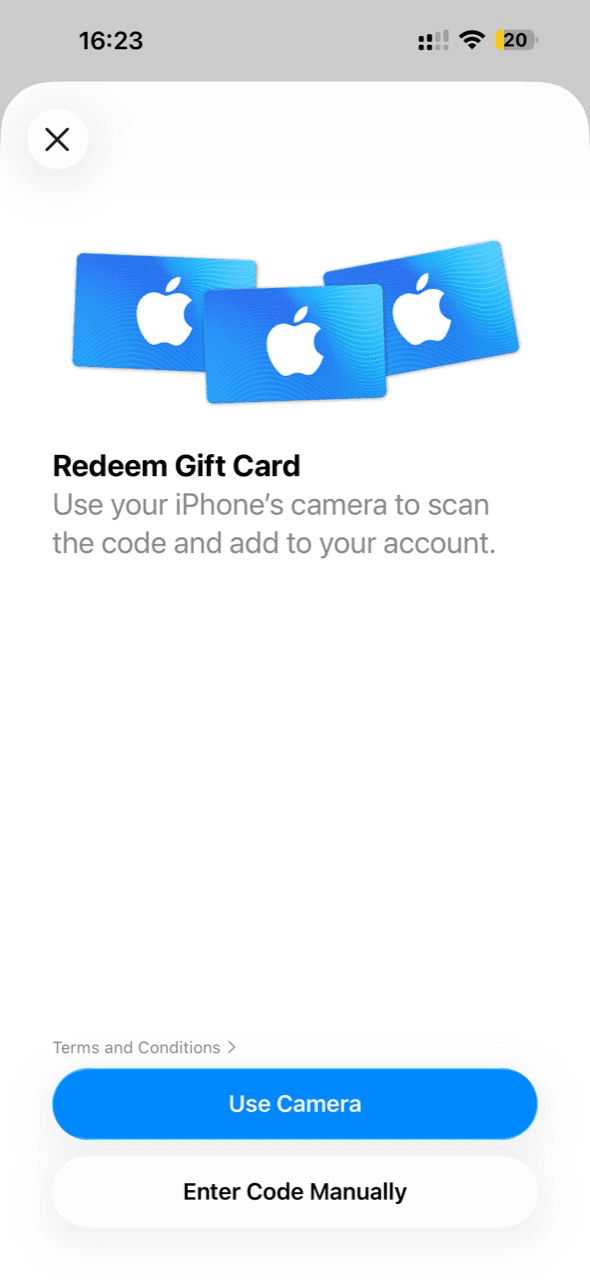
Interface information and Russian screenshot source: T—Ж
How to pay for iCloud+ and other subscriptions
A subscription is never paid with the code directly. The code becomes your Apple ID balance first, and the subscription charges that balance on its next payment.
- 1You pay for the order here — by card or SBP
- 2You redeem the emailed code in the App Store
- 3The amount lands on your Apple ID balance
- 4The next iCloud+ charge is taken from that balance
After redemption, the full amount is added to your Apple ID balance and stays there. Apple charges the subscription cost from that balance, and the remainder stays available for future payments.
To get iCloud+: Settings → your name → iCloud → “Upgrade to iCloud+”. On iOS 18.3 and earlier the item is called “Manage Plan”.
If something goes wrong
The code doesn't work
The App Store tells you what exactly went wrong. “Card is not valid” is usually a typo: check the look-alike characters and make sure you're entering the code that starts with X. “Card has already been redeemed” — sign out of your Apple ID and back in, the balance will refresh.
The pairs people mix up most: B and 8, D and O, E and 3, G and 6, O and Q, O and 0, S and 5, U and V, Z and 2.
What the App Store messages meanThe code is for another region
Our code is redeemed in the Russian App Store. Check your account region: Settings → your name → Media & Purchases → View Account → the Country/Region line.
Changing the region for the sake of a code isn't worth it: Apple first requires you to spend your balance and cancel subscriptions. Write to us instead — we'll replace the code.
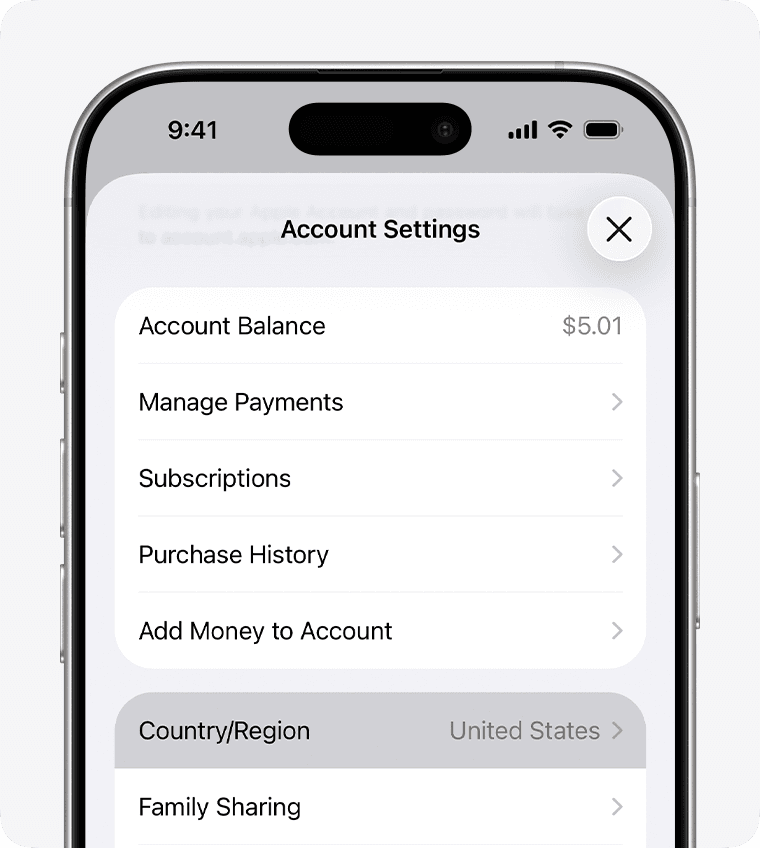
The email hasn't arrived
The code is emailed right after payment, usually within a few minutes. Don't see it — check the Promotions and Spam folders and search for GamePult.
Still no code? Message support with your order number. We'll check your payment and resend the code — and if something's actually wrong with it, we'll replace it or refund you. Write to support